Installation requirements
1. Make sure you have the installation codes available, i.e. the serial number and the product key. All Statistica products must be properly registered to obtain the full license. We recommend automatic registration, for which a working internet connection must be ensured.
2. The minimum requirement for the server part is Windows Server 2012 R2. The recommended version is Windows Server 2019. For the workstation, the minimum is Windows 10.
3. After purchasing the license, we will share the necessary installation files with you. After downloading the file in ZIP format, extract the archive and follow the instructions below.
The installation of the network version (CNET) of Statistica consists of two parts, namely the installation of the server part and installation of the workstation.
Installation of the server part
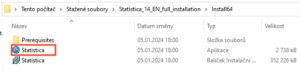
1. After extracting the archive in zip format, locate the statistica.exe file and double-click it.
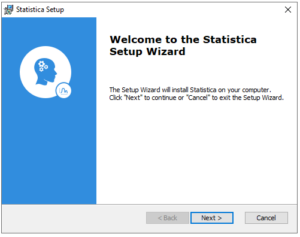
2. When the welcome dialog appears, click Next
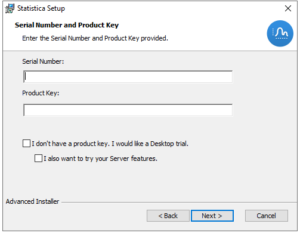
3. In the appropriate boxes, fill in the relevant serial number and product key..
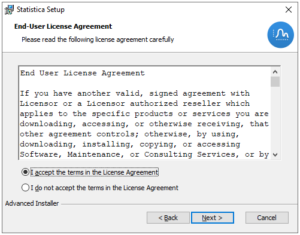
4. When the license agreement appears, select I accept the terms in the license agreement and then click Next.
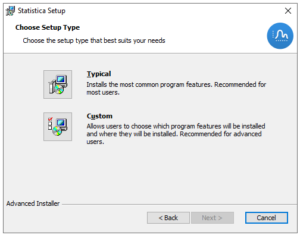
5. In the Setup Type dialog you can choose Typical or Custom.
Typical installation installs the optimal collection of files, and therefore we recommend choosing this option.
Custom installation, whose description is not part of this guide, can be chosen when you want to direct the installation to a location other than the default location in the directory C:\Program Files\TIBCO\Statistica.
Now choose the typical installation and click Next.
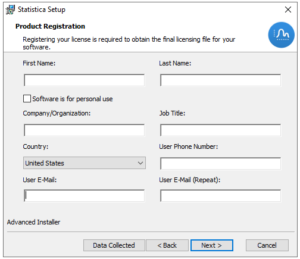
6. In the following dialog, fill in all the information needed to properly register the Statistica software. This information is required to obtain the complete license. After filling in these details, click the button Next.
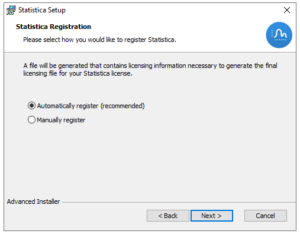
7. In the following dialog, select the type of registration. All Statistica products must be properly registered. The recommended option is Automatic registration, which requires a working internet connection. Click the button Next.
8. Statistica will now attempt automatic registration. If the registration was successful, you will be informed of this by a corresponding message. Click the OK button.
If the automatic registration process fails, a dialog about this failure will appear. In that case, register the license manually using the supplied license file and applying it according to this guide.
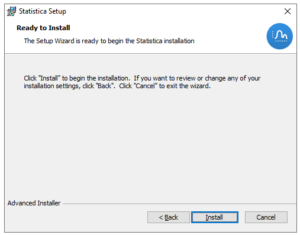
9. Statistica is now ready to install. Click the button Install. The installation process will then begin.
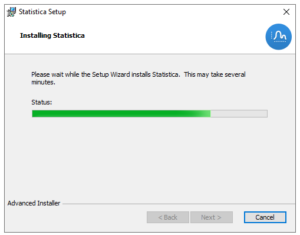
10. After the installation is complete, you should be informed of this by a corresponding message. If a computer restart is required, you must restart the relevant PC to successfully complete the entire installation process and subsequently launch the Statistica program.
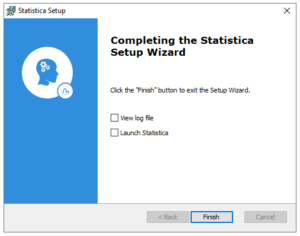
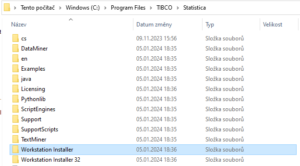
11. Set up sharing of the folder with the Statistica installation, including subfolders. Sharing the folder with the Statistica application files is necessary for installing the workstations.
14. If you want to launch the Statistica program, double-click the relevant Statistica program shortcut on the Windows desktop.
Installation of the workstation (Workstation)
1. Make sure that no other application is running.
2. Locate the shared location that you created in step 13 during the installation of the server part. Depending on which client computer you want to install the Statistica workstation on; whether it is a 32-bit or 64-bit system. These are subfolders of the Statistica installation, namely Workstation Installer 32 or Workstation Installer. In the appropriate folder, double-click the file statistica.exe.
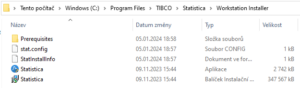
3. When the welcome dialog appears, click Next.
4. When the license agreement appears, select I accept the terms in the license agreement and then click Next.
5. In the following dialog for naming the item in the start menu (Start Menu Folder) choose a name. The default name is Statistica. If you want to create a Statistica program shortcut on the Windows desktop, select the appropriate option by checking it. Click the button Next.
6. Statistica is now ready to install the workstation. Click the button Install. The installation process will then begin.
7. The computer may perform the relevant update, and then the installation process will begin. To complete the installation, click the button Finish.
8. If you receive a message about a version conflict, it is recommended to keep the existing files. To do this, click the button Yes.
9. If the computer must be restarted to complete the installation process, you must restart your computer.
10. If you want to launch the Statistica program, double-click the relevant Statistica program shortcut on the Windows desktop.