This article covers the installation of the single-user (named user) version of the Statistica program.
Installation requirements
- Administrator rights are required for a successful installation. During the installation, a situation may arise where the computer needs to be restarted, and to complete the installation you must finish it as the administrator, i.e. the system administrator.
- Before starting the installation itself, the previous version of the Statistica program must be properly uninstalled. This procedure will not affect the data files from the previous installation in any way.
Installation
- After purchasing the license, you will be sent a link to download the installation files. To install the Statistica application, use the installer downloaded from the link provided.
- Extract the downloaded version in the ZIP file format and start the installation process.
- Make sure that no other application is running.
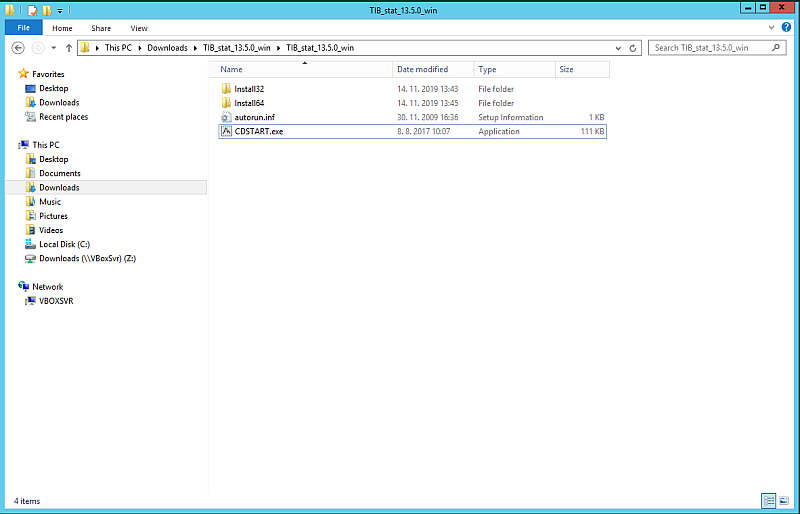
- Double-click the CDSTART.exe file. If you see a dialog box asking whether to upgrade a previous version, select the appropriate checkbox.
- It is possible that, before the actual installation of the Statistica program, additional files essential to the operation of the Statistica application itself will need to be downloaded. (For example, Microsoft .NET Framework and other necessary runtime libraries.) The installation process does this automatically.
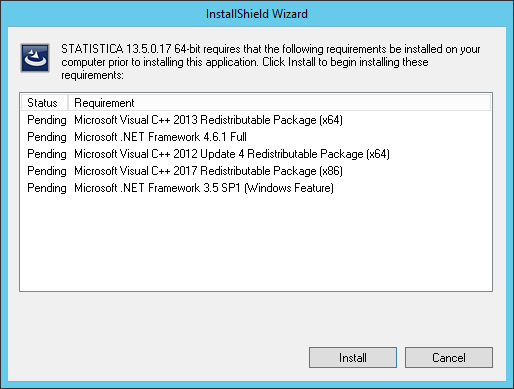
- After any installation of these necessary components, it will probably be necessary to restart the computer.
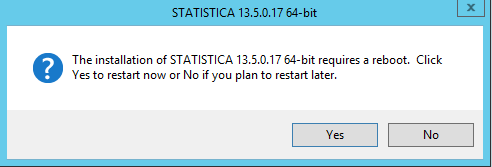
- After any system restart, the installation process itself will start.
- In the following Serial Number/Product Key dialog box, fill in the relevant details such as the application Serial Number and the twenty-digit Product Key in their respective fields.
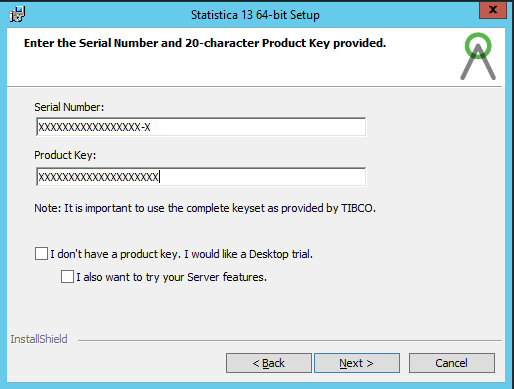
- Click the Next button.
- In the Install Code dialog, fill in the relevant value.
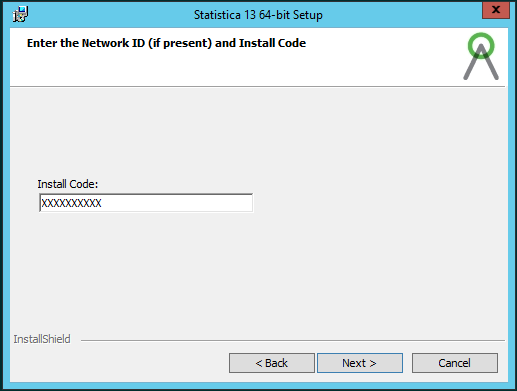
- Click the Next button.
- In the Licence Agreement dialog, choose I accept the terms in the licence agreement.
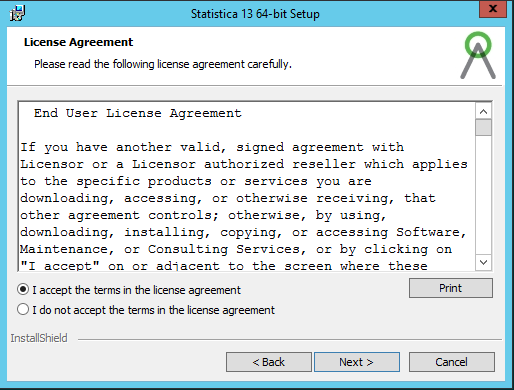
- Click the Next button.
- In the following Setup Type dialog box, select the Typical option. [Note: This brief installation guide covers only the typical installation.]
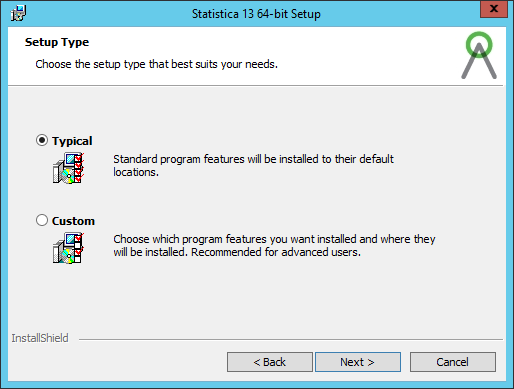
- Click the Next button.
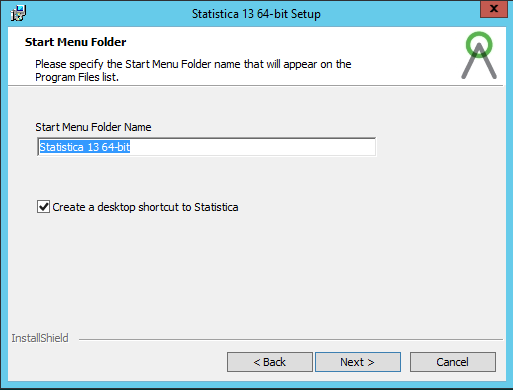
- In the following dialog, keep the installation folder name as it is preset, i.e. Statistica X 64-bit. If you want to add a Statistica program shortcut to the Windows desktop, keep the Create a desktop shortcut to Statistica option checked.
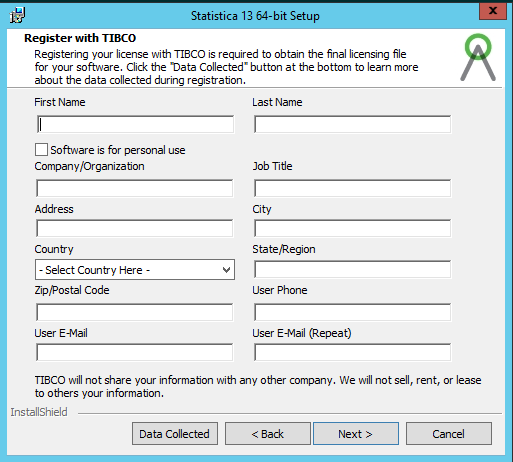
- In the following dialog box, fill in all the required registration details that are needed to obtain the full license. Then click the Next button.
- In the following dialog, select the type of registration for the Statistica program. Please note that all Statistica products must be registered to obtain the full license. For the automatic registration, which we recommend, a working internet connection is required.
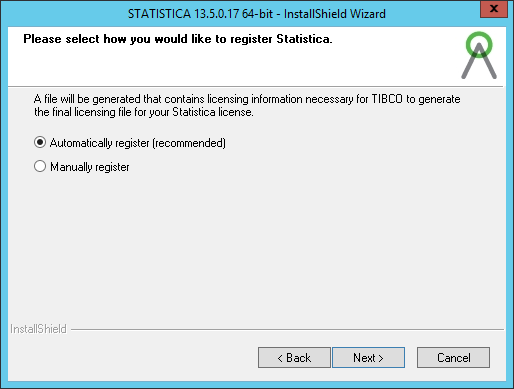
- Click the Next button.
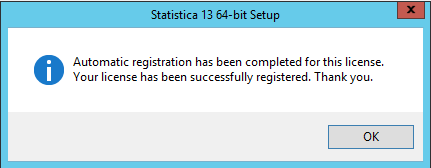
- Statistica will now attempt automatic registration. If the attempt is successful, the following dialog box will appear. Click the OK button.
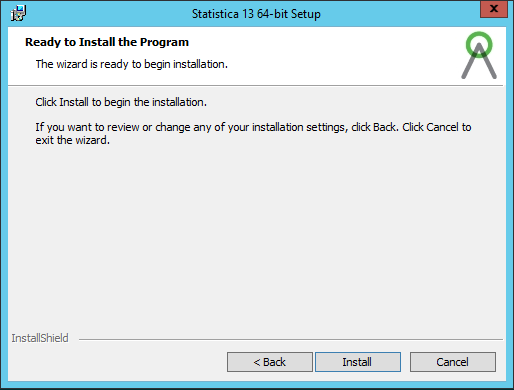
- Statistica is now ready to install. To copy the installation files to your computer, press the install button (Install).
- After the installation is complete, the corresponding message will appear. If you are prompted to restart the system, it is essential to do so in order to successfully launch the Statistica program.
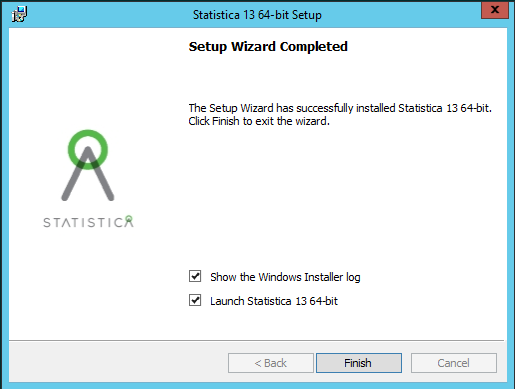
- Now, to complete the installation, all that remains is to press the Finish button.