The license file is a small plain text file named STAT.lic. Note: For a network installation, the reference to the STAT.lic file is located in the Statistica installation directory on each workstation or client station. However, the main license file on the server is the one that must be sent to technical support.
Solution
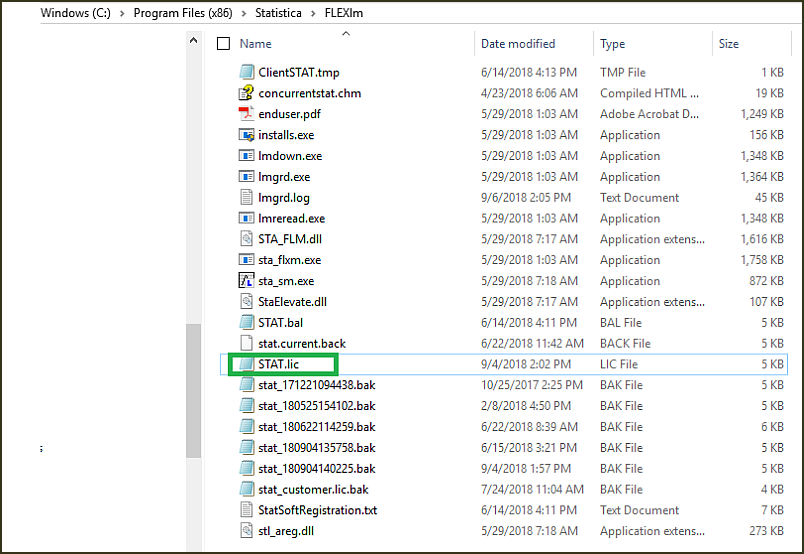
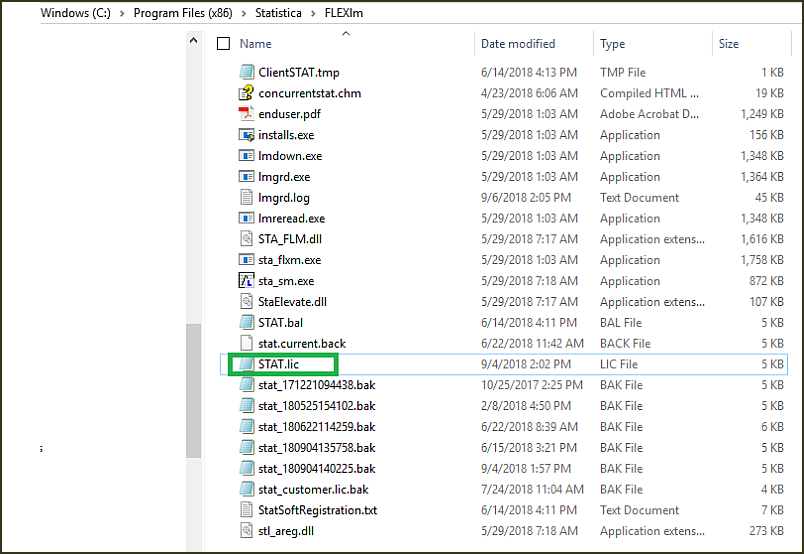
The network license, i.e. the STAT.lic file, is located in the FLEXlm directory on the server station where the license service is installed. A typical location is:
<local_disk>:Program Files (x86)StatSoftFLEXlm , <local_disk>:Program Files (x86)DellFLEXlm or <local_disk>:Program Files (x86)StatistcaFLEXlm
Finding the license file on Windows Server 2003 or Windows Server 2008
1. Click Start / Computer (or My Computer).
2. Double-click the icon C: (the disk icon).
3. Double-click the folder Program Files(x86) or Program Files on 32-bit stations.
4. Double-click the folder StatSoft (Dell or Statistica).
5. Double-click the folder FLEXlm.
Finding the license file on Windows Server 2012 or Windows Server 2016
1. If the Windows desktop is not displayed, press and hold the key with the Windows icon and at the same time press the key D.
2. In the menu bar at the bottom of the screen, click the icon File Explorer. A menu appears:

3. Double-click the disk icon C:
4. Double-click the folder Program Files(x86) or Program Files on 32-bit stations.
5. Double-click the folder StatSoft (Dell or Statistica).
6. Double-click the folder FLEXlm.
Single-user desktop license
A typical location of the license file for Statistica (64-bit installation) is:
C:Program FilesStatSoftSTATISTICA (version number), C:Program FilesDellStatistica (version number) or C:Program FilesStatisticaStatistica (version number)
Statistica (32-bit installation):
C:Program Files (x86) StatSoftSTATISTICA(version number), C:Program Files (x86)DellSTATISTICA(version number) or C:Program Files (x86)StatisticaStatistica (version number).
Finding the license file on Windows 7
1. Click Start / My Computer.
2. Double-click the disk icon C:
3. Double-click the folder Program Files(x86) or Program Files on 32-bit stations.
4. Double-click the folder StatSoft.
5. Double-click the folder STATISTICA or Statistica.
6. Click the button File type in Windows Explorer, the files will be sorted by file type, which makes it easier to find the STAT.lic

Finding the license file on Windows 8, Windows 8.1 and Windows 10
1. If the Windows desktop is not displayed, press and hold the key with the Windows icon and at the same time press the key D.
2. In the menu bar at the bottom of the screen, click the icon File Explorer.
3. Double-click the disk icon C:
4. Double-click the folder Program Files(x86) or Program Files on 32-bit stations.
5. Double-click the folder StatSoft.
6. Double-click the folder STATISTICA or Statistica.
7. Click the button File type in Windows Explorer, the files will be sorted by file type, which makes it easier to find the STAT.lic.
